> For the complete documentation index, see [llms.txt](https://zessai.gitbook.io/zessai-docs/llms.txt). Markdown versions of documentation pages are available by appending `.md` to page URLs; this page is available as [Markdown](https://zessai.gitbook.io/zessai-docs/getting-started/zess.ai-quick-start-guide.md).
# Zess.AI Quick Start Guide Using Binance and MetaMask
From Activation to Your First AI Trader
Welcome to Zess!
This Quick Start Guide will take you through the essential steps to activate your account, fund your Zess AI usage, connect a **Binance Demo or Live account**, and get your first Zess AI Trader running.
For most new users, we recommend our [**Aster DEX with MetaMask Quick Start Guide**](https://zessai.gitbook.io/zessai-docs/getting-started/zess.ai-setup-guide-using-aster-dex-and-metamask) as the main setup.
This guide is for users who want to use **Binance Demo or Binance Live**.
If you are new to Zess and Binance Demo is available in your region, we recommend starting with **Binance Demo** so you can learn how your AI Trader works using virtual trading funds.
{% hint style="warning" %}
Binance services, products, and features may vary depending on your country or region.
If you are unable to set up or use Binance correctly, there may be **KYC requirements or regulatory restrictions in your country**.
In this case, the easiest option is to use our recommended setup:
**Aster DEX with MetaMask**
Please follow the [**Aster DEX with MetaMask Quick Start Guide**](https://zessai.gitbook.io/zessai-docs/getting-started/zess.ai-setup-guide-using-aster-dex-and-metamask) instead.
{% endhint %}
{% stepper %}
{% step %}
### Activate Your Zess.AI Account
Before setting up MetaMask, Binance, or your AI Trader, you first need to **activate your Zess.ai account**.
Go to
In the **top-right corner**, click **Sign In**.
You will now see the Zess login page.

If you have not created your account yet, click **Sign Up**.
{% hint style="info" %}
**Sign In** is for users who already have a Zess account.
**Sign Up** is for creating your account using your **Activation Code** received in your email after completed payment.
{% endhint %}

#### Create Your Account
On the **Create Your Account** page, enter:
* **Email Address**
* **Password**
* **Confirm Password**
* **Activation Code**
Copy and paste the **Zess Activation Code** you received into the Activation Code field.
#### Create a Secure Password
Make sure your password meets all of the password-strength requirements shown on the screen.
Once all requirements are completed, click **Create Account**.
Your **Zess.ai account is now activated.**
You can now log in to Zess and continue with the next steps to set up MetaMask, Binance, and your first Zess AI Trader.
**VIDEO TUTORIAL:**
{% embed url="" %}
### Before You Start — Two Separate Parts Of Your Setup
Your Zess setup has **two separate parts**.
#### 1. ZESS.AI — AI Usage
You need **USDC (Base Network)**.
For this setup, we recommend using **MetaMask** to get your USDC (Base Network).
This goes into your **Zess x402 Wallet**.
The USDC in your x402 Wallet is used to pay for the **AI analysis and requests made by your Zess AI Traders**.
**What to Look for in MetaMask**
Select:
**USDC — USD Coin**\
**Network: Base**
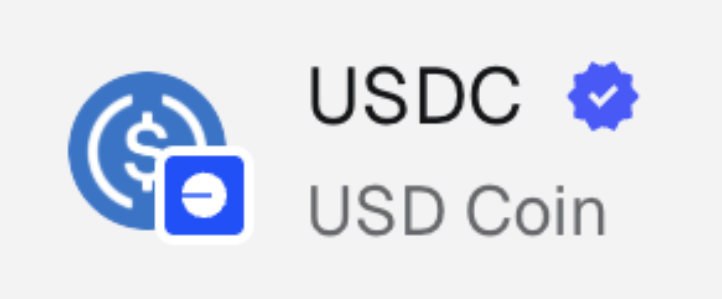
Look for the **blue USDC logo with the small blue Base network symbol**.
**Or**
{% hint style="warning" %}
Make sure you select **USDC on Base Network**, not USDC on another network.
{% endhint %}
For example, you could start with **$5 USDC (Base Network)**.
Zess Grid Traders use only a small amount of USDC for each AI analysis, so a small balance is enough to get started.
#### 2. BINANCE — TRADING
Your **Binance Demo or Binance Live account** is used separately for trading.
{% tabs %}
{% tab title="Binance Demo" %}
Binance Demo uses **virtual trading funds**.
You do not need to deposit real trading capital into the Demo account.
{% endtab %}
{% tab title="Binance Live" %}
If you connect a Binance Live account, your Binance account provides the **real trading capital** used by your Zess AI Trader.
The trading capital in Binance is separate from the USDC in your Zess x402 Wallet.
{% endtab %}
{% endtabs %}
{% hint style="info" %}
#### Easy Way to Remember
**USDC = AI**
**USDC (Base Network) → MetaMask → Zess x402 Wallet → AI Usage**
**BINANCE = TRADING**
**Binance Demo → Virtual Trading Capital**
or
**Binance Live → Real Trading Capital**
For this Quick Start setup, we recommend using **MetaMask for your Zess AI funding** and keeping your Binance account for trading.
{% endhint %}
{% endstep %}
{% step %}
### Create Your MetaMask Wallet
If you already have MetaMask, you can skip this step.
Go to the official MetaMask website:
Click **Get MetaMask** and add the **MetaMask extension to your browser.**
Once MetaMask has been added to your browser, open the MetaMask extension.
Select:
**Create a New Wallet**
Follow the instructions to create your wallet.
{% hint style="danger" %}
Never share your:
* MetaMask recovery phrase
* Private keys
* Passwords
Your recovery phrase gives access to your wallet. Keep it private and secure.
{% endhint %}
{% endstep %}
{% step %}
### Get USDC on Base Network for Zess AI usage
First, you need a small amount of USDC to pay for your Zess AI requests.
In MetaMask, get **USDC (Base Network)**.
For example:
**$5 USDC (Base Network)**
You can purchase USDC through an available MetaMask provider or transfer USDC (Base Network) into your MetaMask wallet from another supported source.
Make sure:
**Token: USDC**
**Network: Base**
{% hint style="warning" %}
Do not accidentally use USDC on another network for this step.
Your Zess x402 Wallet requires:
**USDC (Base Network)**
{% endhint %}
{% endstep %}
{% step %}
### Send USDC (Base Network) to Your Zess x402 Wallet
Go to Zess:
Click your **Profile icon**.
Switch to **Beginner Mode**.
Find your **Zess x402 Wallet**
Copy the wallet address.
Now return to MetaMask.
Select:
**USDC (Base Network)**
Click:
**Send**
Paste your **Zess x402 Wallet Address** and enter the amount you want to send.
For example:
**$5 USDC**
Before sending, check:
* ✓ Token = **USDC**
* ✓ Network = **Base**
* ✓ Address = **Your Zess x402 Wallet Address**
Then approve the transaction.
Once complete, your Zess x402 Wallet should show your USDC balance.
This USDC pays for your **AI usage in Zess.**
{% hint style="info" %}
**USDC (Base Network) → Zess x402 Wallet → AI Usage**
{% endhint %}
**VIDEO TUTORIAL 1:**
{% embed url="" %}
**VIDEO TUTORIAL 2:**
{% embed url="" %}
{% endstep %}
{% step %}
### Set up your Binance account
You can connect Zess to either a:
**Binance Demo Account**
or
**Binance Live Account**
If you are new to Zess and Binance Demo is available to you, we recommend starting with **Binance Demo** so you can practice using virtual trading funds.
{% tabs %}
{% tab title="Binance Demo Account" %}
In Binance, go to:
**Trade → Demo Trading**

Click your:
**Profile icon → Demo Trading API → Create API**

Choose:
**System Generated**

Give your API a name such as:
**Binance Demo**

Create the API and copy your:
* **API Key**
* **Secret Key**
Save these securely.

{% endtab %}
{% tab title="Binance Live Account" %}
Log in to your Binance Live account.
Go to:
**API Management**
Create an API for Zess.
Give the API a name that makes it easy to identify.
For example:
**Zess Trader 1**
Copy your:
* **API Key**
* **Secret Key**
Make sure the API has the necessary:
**Futures Trading permissions**
enabled.
Keep your API credentials secure and never share them publicly.
{% endtab %}
{% endtabs %}
{% hint style="warning" %}
Binance services and features may vary depending on your country or region.
If Binance is not available or suitable in your region, use the **Aster DEX with MetaMask Quick Start Guide** instead.
{% endhint %}
**TUTORIAL:**
{% content-ref url="/pages/14b80344f18b49e920ef540360bcc8fc1c99dee0" %}
[How to create a Binance demo account and API key?](/zessai-docs/getting-started/how-to-create-a-binance-demo-account-and-api-key.md)
{% endcontent-ref %}
{% endstep %}
{% step %}
### Make sure your Binance account can trade

{% hint style="warning" %}
#### Make sure Futures trading is activated
Before continuing, your Binance account must be fully enabled for Futures trading.
Binance may require you to:
* **Complete the Futures quiz**
You must complete this quiz before Zess can place trades on your Binance account.
The easiest way to confirm your account is ready is to place a small manual Futures trade.
If you can successfully open a Futures position, your account is ready.
Then:
**CLOSE THE TEST TRADE BEFORE CONTINUING.**
You should have no open positions when you start your Zess AI Trader.
{% endhint %}
**TUTORIAL:**
{% content-ref url="/pages/14b80344f18b49e920ef540360bcc8fc1c99dee0" %}
[How to create a Binance demo account and API key?](/zessai-docs/getting-started/how-to-create-a-binance-demo-account-and-api-key.md)
{% endcontent-ref %}
{% endstep %}
{% step %}
### Connect Binance to Zess
Go back to:
Go to **Config → Exchange Keys**.
Add a new exchange connection.
Select: **Binance**
Enter your:
* **API Key**
* **Secret Key**
* Any additional credentials required
Make sure they are copied correctly.
#### Important — Testnet Setting
The Testnet setting depends on the type of Binance account you're connecting.
{% tabs %}
{% tab title="Binance Demo" %}
**Testnet → ON**
{% endtab %}
{% tab title="Binance Live" %}
**Testnet → OFF**
#### IMPORTANT
Never enable:
**Testnet → ON**
when connecting a Binance Live account.
{% endtab %}
{% endtabs %}
Save the Configuration.
**VIDEO TUTORIAL:**
{% embed url="" %}
{% endstep %}
{% step %}
### Set Up Your AI Model
Now that Binance is connected to Zess, the next step is to choose the **AI model** that will power your AI Trader.
Go to **Config → Model Config**:
Open your **MODEL\_CONFIG**.

Under **Choose AI Model**, select **GLM-5**.
We currently recommend **GLM-5** because it has a very low cost per AI analysis, making it a good choice for an AI Trader that continuously monitors and analyzes the market.
Your Zess x402 Wallet should already contain **USDC (Base Network)**.
This USDC is used to pay for your AI analysis.
Once **GLM-5** is selected, click **Start Trading**.
{% hint style="warning" %}
Do not simply close the window after selecting GLM-5.
You must click **Start Trading** to save and activate your AI model.
{% endhint %}
Your AI model is now configured and ready if you can see it says **glm-5** on your Config page under AI Models.
**VIDEO TUTORIAL:**
{% embed url="" %}
{% endstep %}
{% step %}
### Choose Your First Strategy From the Strategy Market
Now you're ready to choose the strategy your first AI Trader will use.
Go to **Market** in the Zess menu:
Here you will see the ready-made strategies currently available in the **Zess Strategy Market**.
For your first AI Trader, choose either:
* **SOL Grid**
or
* **HYPE Grid**
Find the strategy you want to use and click:
**Copy Strategy**
This copies the strategy into your own Zess Strategies page.
You do **not** need to build your own strategy to get started.
**VIDEO TUTORIAL:**
{% embed url="" %}
{% endstep %}
{% step %}
### Set Up Your Grid Strategy
After clicking **Copy Strategy**, Zess will take you to your:
**Strategies** page
On the left-hand side, find the strategy you just copied.
For example:
**SOL Grid (Copy)**
or
**HYPE Grid (Copy)**
Select the copied strategy.
You can rename the strategy to make it easier to identify.
For example:
**SOL Grid – Trader 1**
or
**HYPE Grid – Trader 1**
#### Set Your Investment Amount
For your first setup, you can leave the strategy settings at their recommended/default values.
The main setting you may want to change is:
**Investment Amount (USDT)**

This determines how much trading capital you want to allocate to this strategy.
For example:
* **$50**
* **$100**
* **$500**
* **$1,000**
Choose an amount that is appropriate for your account and available trading capital.
{% tabs %}
{% tab title="Binance Demo" %}
The Investment Amount will use your **Virtual Demo trading balance**.
{% endtab %}
{% tab title="Binance Live" %}
Make sure your Binance Futures account has enough available trading capital to support the Investment Amount you select.
{% endtab %}
{% endtabs %}
Once everything is set, click the green **Save** button.
Your strategy is now ready to use.
{% endstep %}
{% step %}
### Create Your First AI Trader
Now we're going to bring everything together:
**Your Binance Account + GLM-5 + Your Grid Strategy**
Go to:
**Config**
Click **Create Trader**.
Enter a name for your trader.
For example:
**Zess Trader 1**
Next, select the Binance account you connected earlier.
Select:
**Binance**
Make sure you select the correct:
**Binance Demo or Binance Live connection**
Then go to:
**Select Trading Strategy**
Choose the strategy you just copied and saved.
For example:
**SOL Grid – Trader 1**
or:
**HYPE Grid – Trader 1**
Make sure the correct strategy appears as the selected strategy before continuing.
{% endstep %}
{% step %}
### Configure Your AI Trader
Continue down the **Create Trader** page.
You will see some additional settings for your AI Trader.
#### Margin Settings
You can leave the recommended/default margin settings unless you specifically need to change them.
#### Leaderboard
Choose whether you want your AI Trader to appear on the Zess Leaderboard.
Select:
**Show**
if you want your trader displayed.
Select:
**Hide**
if you want to keep your trader private.
#### AI Scan Decision Interval
This determines how often your AI Trader analyzes the market and decides whether any action is required.
For the **SOL Grid** or **HYPE Grid**, you can use:
**20 Minutes**
This means your AI Agent will analyze the market approximately every 20 minutes.
Remember:
Every AI analysis uses a small amount of USDC from your Zess x402 Wallet.
More frequent analysis means more AI calls and therefore higher AI usage costs.
Once everything is configured, click:
**Create Trader**
Your AI Trader has now been created!
{% endstep %}
{% step %}
### Start Your AI Trader
After creating your trader, it will appear under:
**Current Traders**
Find:
**Zess Trader 1**
Then click:
**START**
{% hint style="warning" %}
Creating your AI Trader does **not** automatically start it.
You must click:
**START**
for your AI Trader to begin analyzing the market and operating your strategy.
{% endhint %}
Once started, your AI Trader is officially up and running and instead of **START** it will say:
**STOP**
{% endstep %}
{% step %}
### Check Your Dashboard
Now let's make sure your AI Trader is operating correctly.
Go to:
**Dashboard**
Find:
**Zess Trader 1**
If you're using the **SOL Grid** or **HYPE Grid**, check that the Grid has been placed correctly.
You should see **Buy and Sell levels above and below the current market price**.
This is an easy way to confirm that your Grid Trader has started and is operating.
{% endstep %}
{% endstepper %}
## Congratulations — Your First Zess AI Trader Is Now Running!
You have now:
* ✓ Activated your Zess.ai account
* ✓ Created your MetaMask wallet
* ✓ Funded your Zess x402 Wallet with **USDC (Base Network)**
* ✓ Set up your **Binance Demo or Live account**
* ✓ Made sure your Binance account can trade
* ✓ Created your Binance API
* ✓ Connected Binance to Zess
* ✓ Configured **GLM-5**
* ✓ Copied **SOL Grid or HYPE Grid**
* ✓ Set your Investment Amount
* ✓ Created your first AI Trader
* ✓ Clicked **START**
* ✓ Checked your trader on the Dashboard
Your first **Zess AI Trader is now set up and running.**
## Want to Add More Zess AI Traders?
Once your first AI Trader is running, you can add more traders using **additional dedicated Binance accounts or sub-accounts**.
To keep everything organized, use the same number throughout the setup:
**Binance Account 1 → Binance API 1 → Zess Trader 1**
**Binance Account 2 → Binance API 2 → Zess Trader 2**
**Binance Account 3 → Binance API 3 → Zess Trader 3**
{% stepper %}
{% step %}
#### Create or use a dedicated Binance account or sub-account
{% endstep %}
{% step %}
#### Create a separate Binance API for that account
{% endstep %}
{% step %}
#### Connect that Binance API to Zess
{% endstep %}
{% step %}
#### Copy and configure your strategy
{% endstep %}
{% step %}
#### Create your new Zess AI Trader and click START
{% endstep %}
{% endstepper %}
{% hint style="warning" %}
Each Zess AI Trader should have its **own dedicated Binance account or sub-account**.
Do not run manual trades or other trading bots on the same account being used by your Zess AI Trader.
{% endhint %}
## Trader Not Starting?
Check these six things:
{% stepper %}
{% step %}
### AI Model
Make sure **GLM-5** is configured and active.
{% endstep %}
{% step %}
### USDC Balance
Make sure your **Zess x402 Wallet contains enough USDC (Base Network)**.
{% endstep %}
{% step %}
### API Keys
Double-check that your **Binance API Key and Secret Key** were copied correctly.
{% endstep %}
{% step %}
### Testnet
**Binance Demo → Testnet ON**
**Binance Live → Testnet OFF**
{% endstep %}
{% step %}
### Test Your Binance Account
Make a small manual trade to confirm your Binance account can trade.
If you can't place a trade manually, you may need to activate Futures trading or complete Binance's required questionnaire or other account requirements.
**Close the test trade before starting Zess.**
{% endstep %}
{% step %}
### Use a Dedicated Account
Your Zess AI Trader should run on a **dedicated Binance account or sub-account**.
Do not have other bots or manual positions running on the same account.
If another position is open, Zess may think it is already in a trade and therefore not enter a new one.
{% endstep %}
{% endstepper %}
Once all six checks are complete, try starting your **Zess AI Trader** again.
## Need Help or Troubleshooting?
If you run into any issues while setting up your Zess AI Trader, please check out our **Zess Tutorials and Troubleshooting Guides**:
[Zess.AI Tutorials & Documentation](https://zessai.gitbook.io/zessai-docs?utm%5Fsource=chatgpt.com)
If you still need help, please contact us through our [**Telegram support channels**](https://t.me/zessai_community) and our team will be happy to assist you.